

Last Updated on: 27th October 2026, 09:44 pm
TL;DR:
- DNS translates domain names into IP addresses to connect browsers with hosting servers. Proper DNS setup and management are vital for website accessibility, speed, and security. Regular DNS audits and choosing reliable providers improve website reliability and reduce migration issues.
DNS is defined as the Domain Name System, the internet’s address directory that translates human-readable domain names into the numeric IP addresses that servers use to communicate. Every time someone types your domain into a browser, DNS is what connects that request to your hosting server. Without it, your website is effectively invisible, even if your hosting is running perfectly. Understanding the role of DNS in hosting is one of the most practical things a small business owner can do to manage their website with confidence.
What is the role of DNS in hosting?
DNS and web hosting are two separate services that work together to make your website accessible. Hosting stores your website’s files, databases, and applications on a server. DNS tells browsers where that server lives. Think of hosting as your physical store and DNS as the street address that gets customers there.

DNS and hosting can be managed independently without affecting each other’s core functions. This means you can register a domain with one company, host your website with another, and use a third-party DNS provider like Cloudflare or Google Public DNS, all without any conflict. Many small businesses do exactly this to get the best combination of price and performance.
The key entity connecting these two services is the authoritative nameserver. When you set up hosting, your provider gives you nameserver addresses. You then point your domain to those nameservers through your domain registrar. That single configuration step is what links your domain name to your hosting server.
Pro Tip: If you ever switch hosting providers, you do not need to change your domain registrar. You only need to update your nameserver records to point to the new host.
Starting a New Small Business Website?
Pair your custom domain and DNS setup with DreamHost. Their intuitive custom control panel makes managing DNS records and nameservers effortless while providing 100% uptime guarantees.
How does DNS resolution work step by step?
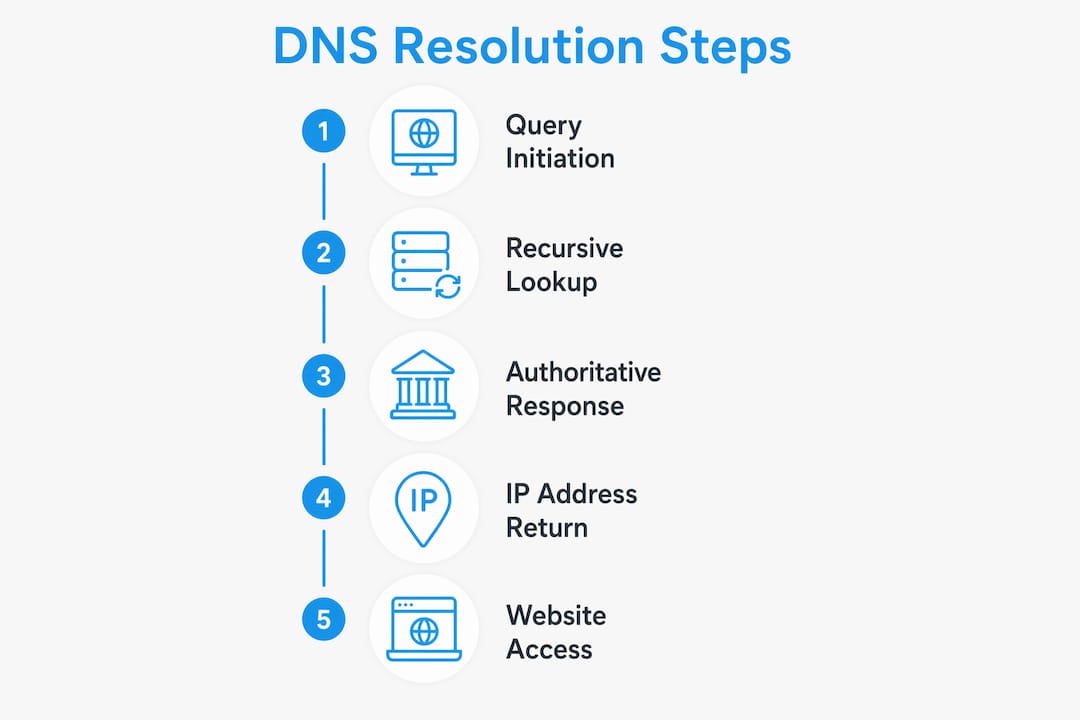
The DNS lookup process follows a specific chain of servers before your browser reaches your hosting server. Here is how it works:
- Your browser checks its local cache. If you visited the site recently, the IP address may already be stored locally. The lookup ends here if a valid record exists.
- The recursive resolver takes over. Your internet service provider runs a recursive resolver that queries the DNS hierarchy on your behalf.
- Root servers are contacted. There are 13 logical root server IP addresses worldwide. The resolver asks a root server which TLD server handles your domain extension, such as .com or .org.
- The TLD server responds. The top-level domain server points the resolver to the authoritative nameserver for your specific domain.
- The authoritative nameserver answers. This server holds your actual DNS records, including the A record that maps your domain to your hosting server’s IP address.
- Your browser connects to the hosting server. With the IP address in hand, the browser sends an HTTP request directly to your host.
The entire resolution process takes under 0.1 seconds in most cases. That speed is why most visitors never notice DNS at all. The chain can involve up to 7 lookups in a full uncached resolution, but caching at each layer keeps repeat visits much faster.
Beyond the A record, DNS uses several other record types that affect your hosting setup. CNAME records create aliases, often used to point “www” to your root domain. MX records route email to the correct mail server. TXT records store verification strings for services like Google Search Console or email authentication tools such as SPF and DKIM.
Pro Tip: Before migrating to a new host, lower your A record’s TTL to 300 seconds (5 minutes) at least 24 hours in advance. This shortens the window where some visitors still reach your old server during the switch.
How does DNS affect website performance?
DNS affects the initial connection to your website, not the speed at which your content loads. This distinction matters more than most beginners realize. Once the DNS lookup is complete and the browser has your server’s IP address, DNS plays no further role in how fast your pages render.
DNS directs traffic; content speed relies on hosting server capacity and CDN caching. A fast DNS lookup followed by a slow hosting server still produces a slow website. This is why upgrading your DNS provider alone will not fix a sluggish site. The real performance levers are your hosting plan and whether you use a content delivery network.
That said, DNS configuration does affect reliability and reachability in ways that matter a lot:
- TTL values control propagation speed. A high TTL means DNS changes take longer to spread globally. A low TTL speeds up updates but increases the number of DNS queries your nameservers handle.
- Caching layers reduce lookup time. DNS lookups are cached at the browser, operating system, and local router levels. Each layer reduces the need to run a full resolution chain.
- Poor DNS setup causes downtime. Misconfigured records or an unreliable DNS provider can make your site unreachable even when your hosting server is running fine.
- Stale cache causes access issues. If visitors report seeing an old version of your site after a migration, their local DNS cache is likely holding an outdated IP address.
Clearing local caches often resolves DNS-related site access issues quickly. On Windows, the command ipconfig /flushdns clears the OS-level cache. On macOS, the equivalent is sudo dscacheutil -flushcache. Knowing this saves you from unnecessary support tickets.
Tired of Slow Server Response Times?
Even with optimized DNS lookups, poor server hardware will drag down your site speed. SiteGround runs on Google Cloud infrastructure with Ultrafast PHP and custom SuperCacher tech for top-tier reliability.
How can small businesses optimize their DNS settings?
Getting DNS right does not require deep technical expertise. A few deliberate choices make a significant difference in performance, security, and reliability.
Choose a reliable DNS provider
Your hosting provider’s default nameservers work fine for most sites. However, dedicated DNS providers like Cloudflare, Google Public DNS, and Amazon Route 53 offer faster global resolution and better uptime guarantees. GeoDNS and Anycast routing direct each visitor to the nearest available server, which reduces latency for international audiences. If your customers are spread across multiple countries, this matters.
Manage TTL values strategically
TTL stands for Time to Live. It tells DNS resolvers how long to cache your records before checking for updates. Proper TTL management shortens global DNS update delays from up to 48 hours to under 1 hour when you set a low TTL before making changes. After the migration is complete and stable, raise the TTL back to a higher value, typically 3,600 seconds or more, to reduce query load.
Enable DNSSEC for security
DNSSEC is a simple but often overlooked security step that protects your domain from cache poisoning and spoofing attacks. Without it, an attacker could potentially redirect your visitors to a fake version of your site. Most domain registrars and DNS providers offer DNSSEC as a one-click option in their control panel. Enable it.
Use encrypted DNS protocols
DNS over HTTPS (DoH) and DNS over TLS (DoT) encrypt DNS queries so third parties cannot see which domains your visitors are resolving. Modern browsers including Chrome and Firefox support DoH natively. For a small business handling customer data, this is a straightforward privacy upgrade worth enabling.
Here is a quick comparison of DNS provider options for small businesses:
| DNS Provider | Key Strength | Best For |
|---|---|---|
| Cloudflare | Speed and free tier | Most small businesses |
| Google Public DNS | Reliability and global reach | Sites with international visitors |
| Amazon Route 53 | GeoDNS and AWS integration | AWS-hosted applications |
| Hosting provider default | Simplicity | Single-server beginner setups |
How do DNS, hosting, and CDNs work together?
These three services each handle a distinct job in delivering your website to a visitor. Confusing their roles leads to misdiagnosed problems and wasted money.
Hosting stores your website’s files, runs your application code, and serves responses to browser requests. The quality of your hosting determines how fast those responses are. Shared hosting, VPS, and dedicated servers each offer different levels of server resources and performance.
A CDN (content delivery network) caches static assets like images, CSS, and JavaScript files on servers distributed around the world. When a visitor in Tokyo loads your site hosted in New York, the CDN serves cached files from a nearby server instead of routing every request across the ocean. Cloudflare, Amazon CloudFront, and Fastly are common CDN providers.
DNS routes the initial request. It maps your domain to an IP address and hands the browser off to either your hosting server or your CDN’s edge server. DNS does not cache or serve content. It only directs traffic.
| Service | Primary function | Controls content speed? | Controls routing? |
|---|---|---|---|
| DNS | Maps domain to IP address | No | Yes |
| Web hosting | Stores and serves website files | Yes | No |
| CDN | Caches and delivers static content | Yes | Partially |
The three services work in sequence. DNS resolves first, then the browser connects to either the CDN edge or the origin hosting server, then content is delivered. A problem at any layer affects the visitor’s experience, but the fix is different for each. Understanding how web hosting works alongside DNS makes it much easier to diagnose where a problem actually lives.
What I have learned from watching small businesses get DNS wrong
After reviewing dozens of hosting setups, the same mistakes come up repeatedly. The most common one is treating DNS and hosting as the same thing. When a site goes down, the instinct is to blame the host. But a surprising number of outages trace back to expired domain registrations, misconfigured nameservers, or DNS records pointing to an old server after a migration.
The second mistake is ignoring DNS security entirely. Small businesses assume they are too small to be targeted. DNS spoofing attacks do not discriminate by business size. Enabling DNSSEC takes about two minutes in most control panels. Not doing it is a risk with no real justification.
The third mistake is setting high TTL values and then scrambling during a migration when DNS takes 24 to 48 hours to propagate. Lowering TTL in advance is a basic step that most guides mention but few beginners actually follow through on. When you plan a site migration, TTL management is the first thing to handle, not an afterthought.
My honest recommendation: do a DNS audit once a year. Check that your records are accurate, your DNSSEC is active, and your TTL values make sense for your current setup. It takes 20 minutes and prevents a category of problems that are entirely avoidable. Pair that with a solid hosting provider and you have covered the two biggest variables in your site’s reliability.
— Peter
Find the right hosting provider for your DNS setup
Digihost Guide reviews hosting providers based on performance, reliability, and ease of DNS management, so you can make a confident choice without spending hours on research. Whether you are launching your first site or moving an existing one to a faster host, the right provider makes DNS configuration straightforward from day one. Browse the top-rated hosting reviews on Digihost Guide to compare providers that offer strong DNS tools, clear nameserver documentation, and dependable uptime. You can also check the updated provider rankings to find options matched to your budget and technical comfort level.
FAQ
What is DNS in web hosting?
DNS is the system that translates your domain name into the IP address of your hosting server. It acts as the directory that connects a visitor’s browser to the server where your website files are stored.
Does DNS affect website loading speed?
DNS affects only the initial lookup that connects your domain to your server’s IP address. After that lookup completes, content loading speed depends entirely on your hosting server and CDN, not DNS.
Can I use a different DNS provider than my hosting company?
Yes. DNS and hosting are independent services. You can point your domain to any DNS provider, such as Cloudflare or Google Public DNS, while keeping your files on any hosting server.
What happens if my DNS is misconfigured?
A misconfigured DNS record makes your website unreachable, even if your hosting server is running correctly. Visitors will see a “site not found” error because their browser cannot locate the correct IP address.
How long does DNS propagation take?
DNS propagation typically takes up to 48 hours with default TTL settings. Setting a low TTL before making DNS changes can reduce propagation to under one hour.
