

Last Updated on: 12th September 2026, 03:14 pm
TL;DR:
- The WordPress memory limit error occurs when a script exceeds your server’s PHP memory cap, causing a fatal error.
- To fix it, you should increase the
WP_MEMORY_LIMITandWP_MAX_MEMORY_LIMITconstants or adjust your server’s PHP memory setting through the control panel or files.
The WordPress memory limit error is a PHP memory exhaustion issue that occurs when a script on your site demands more RAM than your server allows. Technically, it surfaces as a fatal error message reading “Allowed memory size of X bytes exhausted.” Fixing it requires increasing two WordPress constants, WP_MEMORY_LIMIT and WP_MAX_MEMORY_LIMIT, and in many cases also raising the server-level php.ini memory setting that acts as the absolute ceiling. The good news is that a safe memory increase can restore your site’s functionality within minutes, and you do not need to be a developer to do it.
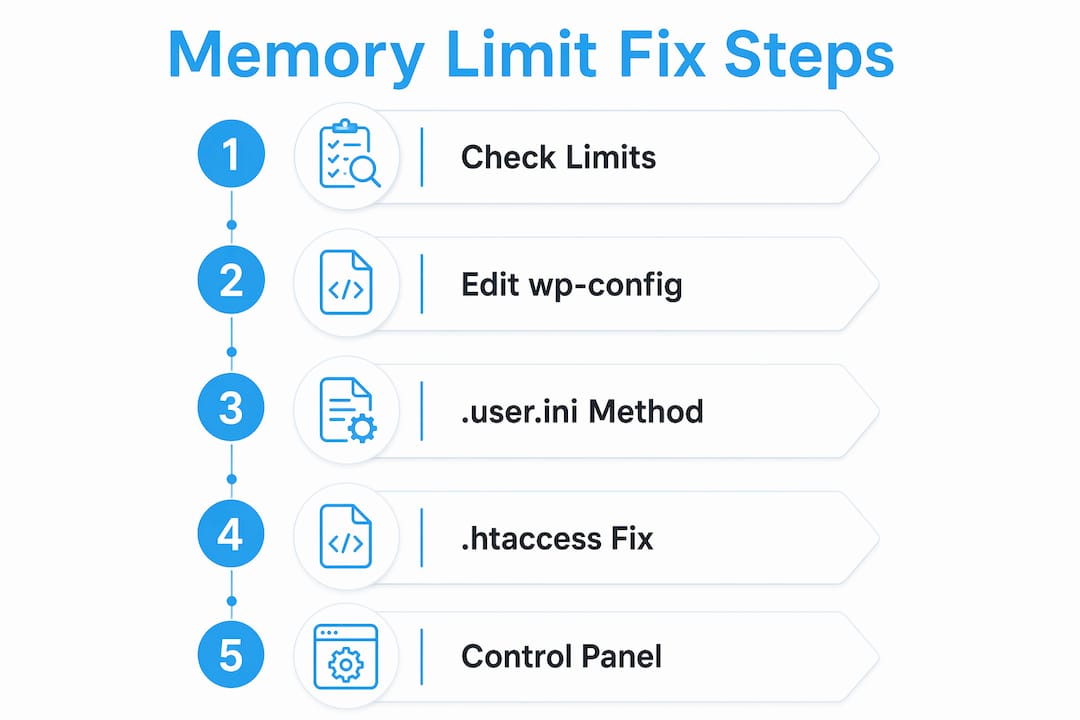
How to fix the WordPress memory limit error: check your current limits first
Before you change anything, you need to know what limits are currently in place. WordPress and your server each enforce separate memory caps, and confusing the two is one of the most common reasons fixes fail.

The fastest way to check is through the WordPress admin panel itself. Go to Tools > Site Health > Info > Server and look for the “PHP memory limit” row. This shows the server-level php.ini value, which is the hard ceiling that WordPress cannot exceed no matter what you set in your configuration files. If you use Elementor as your page builder, you can also find this data under Elementor > System Info, which displays both the WordPress memory constant and the PHP memory limit side by side.
Here is what each value means and why the distinction matters:
WP_MEMORY_LIMIT: The memory WordPress requests for front-end page loads. WordPress sets this to 40M by default, though many hosts override it to 64M or 128M.WP_MAX_MEMORY_LIMIT: The memory WordPress requests for admin-area tasks. Admin areas use WP_MAX_MEMORY_LIMIT, which defaults to 256M. If your PHP memory limit is lower than this, admin tasks will trigger memory errors even when your front end loads fine.- Server PHP
memory_limit: Set inphp.inior your host’s control panel. This is the final cap. WordPress constants are requests to PHP, not guarantees. The host-set PHP memory_limit is the binding ceiling for all scripts.
Pro Tip: Write down your current values before making any changes. If something goes wrong, you will know exactly what to revert to.
Step-by-step methods to safely increase WordPress memory limits
There are four main methods to raise your memory limits, and the right one depends on your hosting environment. Work through them in order.
Method 1: edit wp-config.php (works on most hosts)
This is the standard starting point. Open your wp-config.php file using your host’s file manager or an FTP client like FileZilla. Add these two lines above the line that reads /* That's all, stop editing! */:
define('WP_MEMORY_LIMIT', '256M');
define('WP_MAX_MEMORY_LIMIT', '512M');
Adding these constants correctly tells WordPress to request more memory from PHP on every page load. WordPress applies the change immediately on the next request, provided your server’s PHP limit is high enough to honor it. If the error persists after this step, your server’s PHP ceiling is the problem, not the WordPress constants.
Method 2: use .user.ini for PHP-FPM or NGINX hosts
If your site runs on NGINX with PHP-FPM (common on cloud hosts and many modern shared plans), .htaccess directives will not work. PHP-FPM/NGINX environments ignore .htaccess php_value directives entirely, which causes silent failures. Instead, create or edit a .user.ini file in your WordPress root directory and add:
memory_limit = 256M
Wait a few minutes for PHP-FPM to pick up the change, then retest.
Method 3: use .htaccess for Apache/mod_php hosts
On Apache servers running mod_php, you can add the following line to your .htaccess file:
php_value memory_limit 256M
Monitor for 500 errors after saving, since Apache with mod_php supports this directive but a misconfigured line can break your site temporarily.
Method 4: raise the PHP limit in your hosting control panel
If none of the above resolves the issue, the server’s PHP memory_limit is capped below what you requested. On cPanel hosts, go to Software > Select PHP Version > Options and increase memory_limit. On Plesk, find it under Domains > PHP Settings. If you are on a VPS or dedicated server, you can edit php.ini directly. If you are on shared hosting without control panel access, contact your host’s support team and ask them to raise the PHP memory limit. Hosts often cap PHP memory_limit lower than you expect, and only support can lift it.
| Method | Works on | Does not work on |
|---|---|---|
wp-config.php constants | All environments | Anywhere PHP limit is lower |
.user.ini | PHP-FPM, NGINX, FastCGI | Apache running standalone mod_php |
.htaccess directive | Apache with mod_php | NGINX, PHP-FPM |
Control panel / php.ini | cPanel, Plesk, VPS | Managed hosts with locked configs |
Pro Tip: Small businesses benefit most from a two-step approach: set the WordPress constants in wp-config.php first, then ask your host to raise the PHP memory limit if the error persists. This two-step memory fix covers both layers without unnecessary back-and-forth.
Diagnosing persistent memory errors beyond simple limit increases
Raising your memory limit is not always enough. If the error keeps coming back after you have increased the limits, something on your site is consuming an abnormal amount of memory, and you need to find it.
Start by reading your error logs. In cPanel, check Logs > Error Log. On a VPS, look in /var/log/apache2/error.log or /var/log/nginx/error.log. The log entry for a memory error includes a stack trace that names the specific file and plugin responsible. That file path is your first clue.
Common culprits include:
- WooCommerce running large product reports or order exports, which can spike memory consumption significantly during admin tasks.
- Elementor regenerating CSS or loading its editor, which is memory-intensive by design.
- Backup plugins like UpdraftPlus or BackWPup processing large databases or media libraries in a single pass.
- Cron jobs running in the background during peak traffic, doubling up on memory usage without any visible trigger.
- Large image uploads, which require PHP to decode the full image and generate multiple thumbnail sizes. Large image uploads require enough PHP memory for decoding and thumbnail generation, often exceeding what a standard memory limit provides.
Suspect Hidden Malware or Memory-Draining Background Processes?
If memory limit errors persist despite configuration changes, compromised files or rogue background scripts might be executing unauthorized loops. MalCare offers deep automated malware scanning and instant single-click cleanup that bypasses web server memory constraints.
The most reliable diagnostic method is selective plugin deactivation. Disable all plugins except critical ones, test whether the error disappears, then reactivate plugins one by one until the error returns. The last plugin you activated is almost always the source.
Pro Tip: For heavy operations like large imports or WooCommerce bulk exports, use WP-CLI commands instead of the admin interface. CLI operations bypass the web server’s memory constraints and run under a separate PHP process with higher limits.
Raising limits without this diagnosis is a short-term patch. Understanding how to fix the WordPress memory limit error properly means finding the underlying cause, as a plugin with a memory leak will eventually exhaust any limit you set.
Common mistakes and troubleshooting tips when fixing memory limit errors
Even when you follow the right steps, small errors in execution can make it look like nothing worked. These are the mistakes worth avoiding.
- Placing constants in the wrong location in
wp-config.php: Constants must appear above the/* That's all, stop editing! */line. Misplaced or duplicated constants cause silent failures where WordPress ignores your settings entirely. Also check that you are editing the correctwp-config.phpfile, since subdirectory WordPress installs sometimes have two. - Confusing WordPress constants with the PHP memory limit: Setting
WP_MEMORY_LIMITto 512M does nothing if your server’s PHPmemory_limitis 128M. The WordPress constant is a request, not a command. The server always wins. - Forgetting to clear caches: After any memory change, clear your site and server caches before retesting. Caching plugins like WP Rocket or W3 Total Cache can serve old error pages even after the underlying issue is resolved.
Automate Cache Clearing & Reduce PHP Load with WP Rocket
Manual cache purges after file edits are easily forgotten. WP Rocket automatically manages page caching, database cleanup, and asset optimization—drastically lowering overall server RAM consumption per visitor.
- Not verifying the change took effect: Return to Tools > Site Health > Info > Server after making changes to confirm the new memory value is reflected. If the number has not changed, your method did not work on your server type.
- Ignoring server hard caps on shared hosting: Some shared hosts enforce a maximum PHP memory limit of 256M regardless of what you request. If you consistently hit that ceiling, your site has outgrown the plan. Reviewing your hosting traffic limits and plan specs can clarify whether an upgrade is needed.
- Blindly increasing limits without diagnosis: Jumping straight to 1024M without understanding why memory is being consumed is a sign that something else is wrong. Treat the memory limit as a dial, not a solution.
What I have learned from managing WordPress memory issues
In my experience, WordPress memory errors often have less to do with the memory limit itself and more to do with a specific plugin or resource-heavy process. Increasing the limit can make the error disappear, but I treat that as a temporary solution until I know what caused the spike in memory usage.
My standard recommendation is to start with 256M for WP_MEMORY_LIMIT on general blogs and business sites, and 512M for WP_MAX_MEMORY_LIMIT on WooCommerce stores or sites running Elementor Pro. Going higher than that without a clear reason is a red flag that something needs to be fixed, not just accommodated.
I also strongly recommend backing up your site before editing wp-config.php or .htaccess. These are core files, and a single typo can take your site offline. A quick backup through your host’s control panel or a plugin like UpdraftPlus takes two minutes and saves hours of recovery work.
The most underrated habit is documentation. Every time you change a memory setting, note what you changed, why, and what the result was. When the error resurfaces six months later after a plugin update, that log is worth its weight in gold. Monitoring tools like Query Monitor can also show you which plugins are consuming the most memory on each page load, giving you ongoing visibility rather than reactive firefighting.
— Peter
FAQ
What does the WordPress memory limit error mean?
The WordPress memory limit error means a PHP script on your site tried to use more RAM than your server’s memory_limit setting allows. It appears as a fatal error and stops the script from completing.
How do I increase the WordPress memory limit?
Add define('WP_MEMORY_LIMIT', '256M') and define('WP_MAX_MEMORY_LIMIT', '512M') to your wp-config.php file above the “stop editing” line. If the error persists, your host’s PHP memory limit needs to be raised through the control panel or support.
Why is my memory limit not changing after editing wp-config.php?
Your server’s PHP memory_limit is likely set lower than what you requested in wp-config.php. WordPress constants cannot exceed the server’s hard cap. Contact your host or raise the limit directly in cPanel, Plesk, or php.ini.
What memory limit should I set for a WordPress site?
256M for WP_MEMORY_LIMIT covers most blogs and small business sites. WooCommerce stores or sites using Elementor Pro typically need 512M for WP_MAX_MEMORY_LIMIT to handle admin tasks without errors.
Can a plugin cause the WordPress memory limit error?
Yes. A single poorly coded plugin or one running a heavy background process can exhaust your memory limit regardless of how high it is set. Deactivate plugins one by one to isolate the culprit, then contact the plugin developer or find an alternative.
